My Initial Omarchy Desktop Setup
I wanted to try out Omarchy as a Linux desktop in hopes of learning how others optimize their development workflows. It gives me a thoughtfully configured Arch Linux and Hyprland starting point. The idea of configuring an OS with AI-assisted tooling is also appealing. On top of that, it’s rapidly evolving within the community.
This is a snapshot of my initial setup rather than a complete dotfiles repository. The configuration is still in-progress, but these are the first changes that I have made.
Dual-booting alongside Windows
I installed Omarchy alongside Windows on this desktop instead of replacing the existing installation. At startup I can choose the environment I need: Omarchy for my Linux desktop and development workflow, or Windows when I need to use that environment.
That makes Omarchy easy to adopt without giving up the current machine setup. I can keep experimenting with Hyprland, terminals, and local tools while retaining Windows as a separate, available option.
The baseline
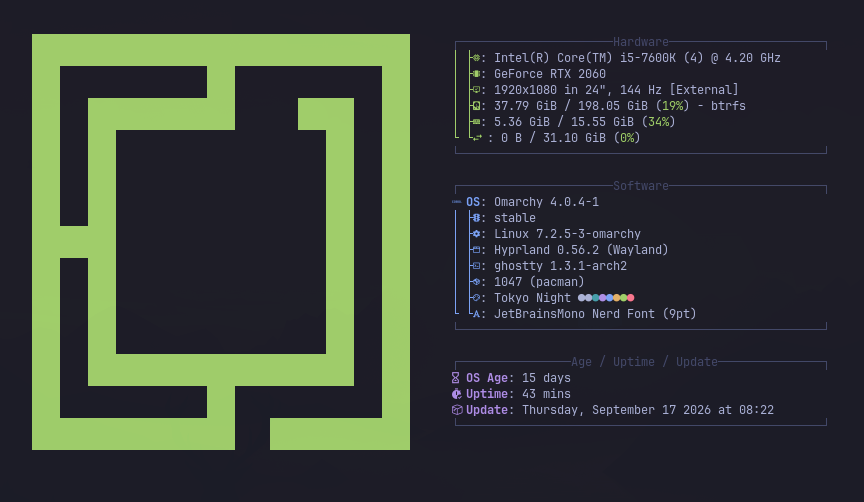
The About screen gives a quick visual summary of the machine and the current software stack:
Keeping Hyprland overrides separate
Omarchy’s Hyprland configuration loads the distribution defaults first and then loads personal files from ~/.config/hypr/. That makes the update boundary clear. My hyprland.lua loads separate files for monitors, input, bindings, appearance, and startup commands rather than turning the main loader into a large personal configuration.
For now, the only substantive display override is the monitor definition:
local omarchy_gdk_scale = 1
local omarchy_monitor_scale = "auto"

hl.env("GDK_SCALE", tostring(omarchy_gdk_scale))
hl.monitor({
  output = "DP-1",
  mode = "1920x1080@144",
  position = "auto",
  scale = omarchy_monitor_scale,
})
That is deliberately boring. I want the monitor to come up at its native high-refresh mode without building a more complicated multi-monitor layout before I need one.
A quieter, more useful bar
I did make a few changes to the Omarchy shell bar. It stays at the top of the screen with an opaque background. The left side contains the menu and workspaces. The center shows indicators, the clock, keyboard layout, weather, and system updates. The right side contains the tray, agent status, Bluetooth, network, audio, monitor, and power controls.
Ghostty as the terminal surface
Ghostty is where most of the rest of the setup comes together. I set it as default over Foot. Within the terminal, I use the built-in shortcut to load my coding agent: tdl omp.
Adding OpenRazer support
I also added support for my Razer hardware instead of relying on a vendor-specific Windows-only utility. Omarchy’s package wrapper installs the OpenRazer daemon:
omarchy pkg add openrazer-daemon
OpenRazer needs access to the device through its group. I added my user to that group, then enabled the per-user daemon:
sudo gpasswd -a "$USER" openrazer
systemctl --user enable --now openrazer-daemon.service
After that, I checked that the service was both enabled and active. If the new group is not visible in the current session, logging out and back in is the simplest way to refresh group membership.
I also have Polychromatic installed as the graphical control panel. It gives me a convenient way to inspect the device and adjust lighting, DPI, polling, and profiles without editing files by hand. The current saved device profile is 800 DPI with a 1000 Hz polling rate, 75 percent lighting brightness, and spectrum effects for the logo and scroll wheel.
The OpenRazer configuration also enables synchronized effects, turns devices off when the screensaver starts, and sends battery notifications every ten minutes when a device reaches 33 percent. I have left automatic persistence restore disabled for now, so the persistence file records the profile without forcing it on every daemon startup.
This is a good example of the kind of small hardware integration I want from the desktop: one package, one group permission, one user service, and a control panel when I need it.
What I am leaving alone
The most important part of this setup may be what I have not customized yet. My personal Hyprland bindings file still contains the guidance for adding overrides, but no new bindings. The appearance, input, and autostart files retain the examples rather than uncommenting every possible option. There are no custom Omarchy plugins or forked themes in my user configuration.
Next tweaks
The next stage I am interested in documenting a repeatable workflow for running coding agents across tmux sessions without turning the desktop into a collection of permanent panes.
For now, the setup feels like a good balance: Omarchy supplies the coherent defaults, while a handful of small overrides make the display, terminal, session management, and editor fit the way I work. If I have a question, I can ask my AI agent for help configuring the specific OS setting.